
WordPress powers over 43% of the web, and that number is growing every day. That doesn't just mean that more sites are running on this popular content management system. It also means there's growing demand for people who can set up, run and develop for WordPress.
Whether you're designing themes, building plugins, customising installations for clients, or contributing to the WordPress core software, there's a huge range of opportunities for anyone interested in becoming a WordPress developer. And while our Managed WordPress is ideal for hosting business websites, it's also a brilliant platform for anyone learning how to develop with WordPress.
What do I need to be a WordPress developer?
Starting out as a web developer can feel overwhelming. What languages should you learn? What platform do you use? Do you need a course or a degree? Where do you even begin?
Here's the truth: it's not that difficult to become a developer. At a basic level, you only need four things.
- A computer
- A text editor
- A web browser
- A reference website
That's it. Use Windows, Mac or Linux. Choose Visual Studio, Sublime Text, or Notepad++. Browse with Chrome, Safari or Firefox. Learn with W3Schools, CodeAcademy or Web.dev.
The tools don't matter nearly as much as just getting started. You just need a computer to work on, somewhere to write your code, somewhere to test your code and somewhere you can make sure you're doing it right.
The basics of WordPress development
WordPress runs on a combination of four core languages:
- HTML
- CSS
- JavaScript
- PHP
While other aspects of development will come up during your work, these form the backbone of WordPress, combining together to make wonderful things.
You don't need to master them all before you begin - in fact, the best way to learn web development is by experimenting, playing, building small things and improving as you go.
What can I do as a WordPress developer?
Honestly? Pretty much anything. When you're working with something as diverse as the WordPress ecosystem, there are plenty of opportunities out there.
Contribute to the WordPress core
WordPress, at its heart, is open source. Being open source means that WordPress is resilient and collaboratively developed. Anyone can contribute, regardless of experience. And contributing to WordPress isn't just about giving back to the platform that powers much of the web, it's about building a particular set of skills that'll stand out on any job application.
Joining the WordPress Core Team is a fantastic way to get started in WordPress development, getting into the nuts and bolts of the software. You can find out more about contributing to the Core Team by reading the Core Contributor Handbook. The Core Team has also created a collection of bugs that are good for first-time contributors to work on, helping you understand not only WordPress, but also the testing and contribution process for WordPress.
Design and develop themes
Prefer working on design and front-end development? Working on WordPress themes is a great way to understand how WordPress works while also helping to make websites look and perform better across the entire web.
WordPress has a detailed Theme Handbook that will help you understand them. You can then start by creating child themes of existing themes, just to get an idea of how themes work and what you can do with them.
And once you're ready, you can build your own theme and submit it to the WordPress Themes team, who, if you meet their requirements, will put it in the Themes Directory for everyone around the world to use.
Build plugins
Plugins are what make WordPress so versatile. From contact forms to online shopping to search engine optimisation to just having the lyrics to Hello Dolly! in the top menu, plugins turn WordPress from a blogging engine into a multifunctional site builder. And there's always room for a new plugin.
If you have an idea for a plugin that doesn't already exist (or could be done better), building a new plugin is a good way to get comfortable with developing WordPress. And WordPress has written a fantastic Plugins Handbook to help you understand how plugins work, what you need to do to build them, and how to make sure you've patched any potential security risks. And when you're happy with your plugin, why not consider submitting it to the Plugins Team?
Customise and optimise for clients
Sometimes, the most valuable work is behind the scenes - tailoring WordPress sites to specific needs. Not every site wants their theme, plugins or customisations distributed out to the wider WordPress community. Often, the changes that are needed are so specific that they wouldn't work for anyone else. You might be building custom integrations, improving performance, boosting accessibility or fixing compromised sites.
This kind of work is always in demand, and lets you go deep into areas like:
- CRM and inventory integrations
- Speed optimisation
- Accessibility audits and implementation
- Site recovery and security hardening
How to get started
The best way to start? Get a WordPress hosting package and start experimenting.
Krystal's Managed WordPress hosting includes staging environments - isolated test sites where you can experiment safely before pushing changes live. Whether you're testing out your new theme, stress testing that plugin, or redesigning the WordPress backend to match your company branding, you can do it all here, privately and without risk.
Create a staging site
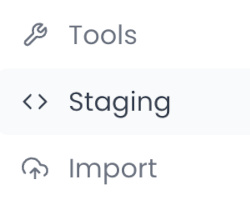
Once you've purchased your hosting package and set up a site on it, go into your Managed WordPress dashboard and click Staging.
Then create a new staging site. You can set it to be available to the public or password-protected, depending on whether or not you want people to be able to see it.
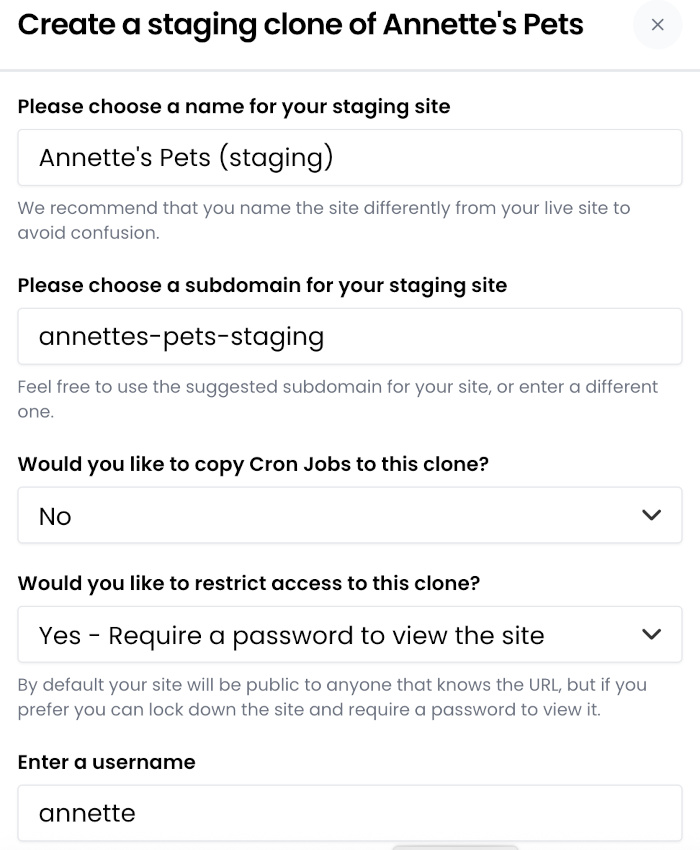
Once you create your staging site, it'll take you to the dashboard for it, and then you can build to your heart's content.
Push to your live site
If you're happy with the work you've done and want the world to see, click on the little Upload icon in the top right of the menu bar.
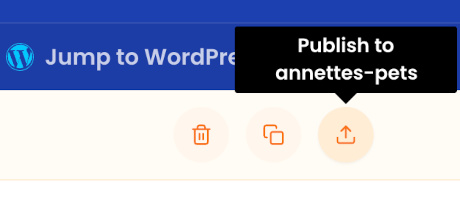
You can choose between a Manual Merge, where you pick what you want to merge (such as a new theme, a new plugin, etc), or a Full Merge, which will put everything from Staging onto Live.
Roll back changes if needed
If you've realised you don't like the changes you've made, you can roll back by going to your Backups and picking the last automatic backup. Our automatic backups are taken every day, and you can also take a manual backup before you push Staging to Live, just in case.
Start by clicking on the Backups in your dashboard menu.
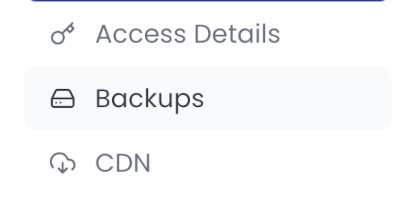
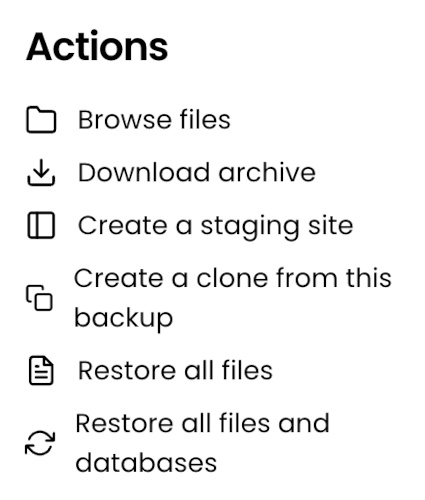
Find the backup you want, and click on Notes to access it. You can then go through the files to pull the exact ones you need, create a staging site from this backup, or restore it all to your live site.
Build your skills on solid foundations
Learning to develop for WordPress doesn't require formal training, just curiosity, time and a safe space to try things out.
With powerful tools like staging sites, daily backups and high-performance hosting, our Managed WordPress is here to help you become the WordPress developer the world needs.
Share this article
About the author

Kate B
I'm Kate, and I'm one of the Senior Marketing Managers here at Krystal. I'm a transplanted Southern Californian who likes bad pop culture, the Internet, and talking everyone's ears off about web hosting. Howdy!